Once your KJ
Media Pro HD account is activated and you have withdrawn sufficient
"credits" from your account, you're ready to start "redeeming" your
credits for new song selections!
CompuHost provides for several different methods of adding requested song
selections to a Performer's Queue, depending entirely on user preference.
(See "Adding Song Selections to Performers Queue"
and "Add Songs using Drag and Drop")
The KJ Media Pro HD system is seamlessly integrated with whatever method
you prefer, so the process is simple...
| · |
All of your available
KJ Media Pro HD selections will be combined with your existing song
selections within the "Song Search"
dialog. To differentiate KJ Media Pro HD selections, simply look for
the lock icon
 . .
|
| · |
Search for and add
selections as usual, using your preferred method.
|
| · |
When adding a KJ Media
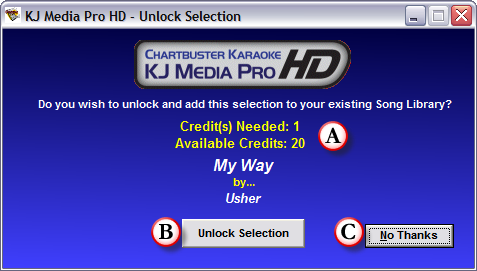
Pro HD selection. the following dialog will appear...
|
(Image 1)
| · |
Here you're provided
with the "Credits Needed" to unlock the selection, along with how many
"Local Credits" are available for use.
|
| · |
Be sure to review the
selection (Title and Artist) to ensure it's the selection you wish to
purchase (REMINDER: All purchases are FINAL, no refunds are offered
for incorrect selections)
|
| · |
If you wish to
purchase the selection by redeeming the applicable number of credits,
click "Unlock Selection" (B) (Image 1), otherwise click "No Thanks"
(C) (Image 1).
|
| · |
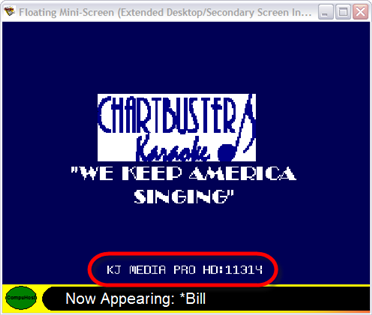
THAT'S IT! Your new
selection will be unlocked, personalized with your KJ Media Pro HD
Registration ID (See Image 2 below), placed in your designated storage
folder, and cataloged within CompuHost for future use.
|
| · |
Finally, the song
selection will be added to the Performer's Queue, available for
immediate launch!
|
(Image 2)
|