.png)
(Figure 4 - SongList View/Edit)
To Search and/or Edit the Main SongList.....
|
Viewing/Searching the Main SongList
| [Previous] [Main] [Next] |
(Figure 4 - SongList View/Edit)
To Search and/or Edit the Main SongList.....
| 1. | Select the desired "Sort Field" and "Browsing Order" by clicking on the appropriate TAB at the Top of the Dialog (A)
|
| 2. | Enter the "Search Text" of the Song Title, Artist or Disc ID (Depending on the Selected "Browsing Order TAB") (B)
|
| 3. | Select the desired Search Method. (C)
|
| 4. | Click one of the following buttons (D) depending on the desired results…
|
| · | Search All - Locates listings that match your Search Criteria in ANY field (Title, Artist). Ex: You may enter "My Way Sinatra" to quickly find "My Way" by "Frank Sinatra".
|
|
|
| NOTE: DEEP SEARCH - You may also combine the DiscID into the search criteria by performing a "Deep Search". To do this, simply append a PLUS (+) Sign to the END of the Search Text. As an example, to locate the "MUSIC MAESTRO" version of "My Way" by "Frank Sinatra" you may enter "My Way Sinatra MM+" to perform the Deep Search.
|
|
|
| · Search Title/Search Artist/Search DiscId - Depending on the selected "Browsing Order" (A), You may search ONLY the applicable field. Ex: Searching the text "Way" will result in a listing of all Songs matching your Search Criteria in ONLY the field selected.
|
| · Show All - Displays ALL listings in your SongBase.
|
| · | All Listings that match the Search Criteria will be displayed in the Listings Window (E)
|
| · | You may Edit, Delete, or Add Listings by using the Edit Buttons at the bottom of the dialog (F)
|
| · | After you have located a listing using the above Search procedure, you'll use this button to "ADD" the selected listing to the Performer's Song Queue.
|
|
|
.png)
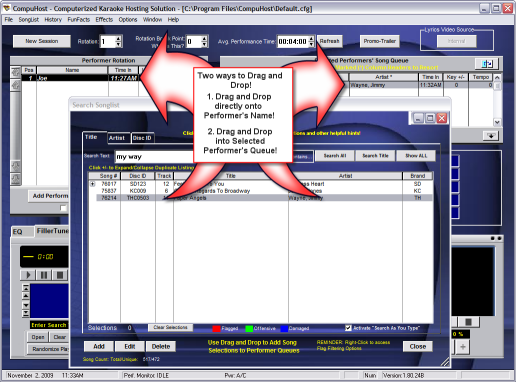
| 1 Open the Songlist Viewer by pressing ALT-S or F5.
|
| 2 Once opened, you may search your SongList as described earlier and simply Drag and Drop selections onto the appropriate Performer within the Performer Rotation List (H)(Figure - Main Screen), or directly into a selected Performer's Song Queue (I)(Figure - Main Screen).
|
|
|