|
· |
Select "File->KJ Media
Pro HD->Configure/Manage KJ Media Pro HD" from CompuHost's Main Menu.
|
| · |
The following dialog
will appear...
|
(Image 1)
| · |
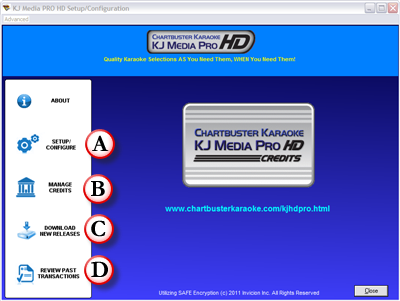
Click
"Setup/Configure" (A) (Image 1)
|
| · |
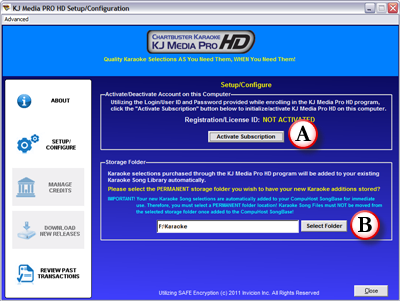
The following dialog
will appear...
|
(Image 2)
| · |
Click "Activate
Subscription" (A) (Image 2)
|
| · |
Enter the Account
Login Username and Password provided during enrollment.
|
| · |
If all goes well, your
account will be validated online and activated on this computer.
|
| · |
Next, you'll need to
designate the "Storage Folder" you wish your new song selections to be
stored in once unlocked and added to your song library (B) (Image 2).
|
IMPORTANT! The Storage
Folder selected above MUST be a PERMANENT storage location. Your new
selections are automatially cataloged within CompuHost as part of the
Unlocking process. Therefore, the files should not be moved, so they can
be properly located for playback when needed.
Once your account is activated, you'll need to withdraw some, or all (see
"Precautions and Securing KJ
Media Pro HD Credits") of your "Credits" so you can begin redeeming
them for new song selections when, and as needed!
| · |
Click "Manage Credits"
(B) (Image 1)
|
| · |
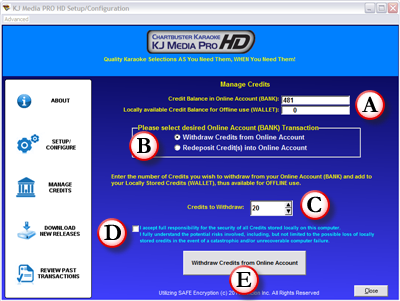
The following dialog
will appear...
|
(Image 3)
| · |
Your available "Online
Credits" and "Locally Stored" credits are provided onscreen. (A)
(Image 3)
|
| · |
You may "Withdraw" and
"Redeposit" cedits as needed by selecting the desired transaction. (B)
(Image 3)
|
| · |
Enter the amount of
credits you wish to withdraw or redeposit. (C) (Image 3)
|
| · |
Accept the provision
by checking the applicable box (D) (Image 3)
|
| · |
And finally click the
button (E) (Image 3) to process the transaction.
|
| · |
If all goes well, your
account balances will be updated onscreen. (A) (Image 3)
|
Downloading New Releases
You'll want to keep your available KJ Media Pro HD library
up-to-date as new selections are released!
REMINDER: Updating the Kj Media Pro HD library is easy and FREE!
An active and functioning
Internet Connection is necessary to download New Releases, therefore
ensure your computer is properly connected to the Internet before
proceeding.
| · |
Click "Download New
Releases" (C) (Image 1)
|
| · |
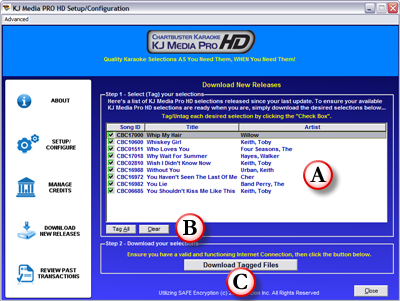
The following dialog
will appear...
|
(Image 4)
| · |
All New Releases will
be listed onscreen (A) (Image 4)
|
| · |
You may tag individual
selections by simply clicking each applicable checkbox, or
conveniently tag them all by clicking "Tag All". (B) (Image 4)
|
| · |
Click "Download Tagged
Files" to begin the automated process.
|
Reviewing Past Transactions
CompuHost keeps a record of most KJ Media Pro HD transactions, including
Queries, Withdrawals, Redeposits, Unlocked Selections etc.
To review your past transactions...
| · |
Click "Review Past
Transactions" (D)(Image1)
|
| · |
The following dialog
will appear...
|

(Image 5)
| · |
Past transactions are
provided onscreen (A) (Image 5)
|
| · |
Further transactions
details are provided by selecting each transaction (B) (Image 5)
|