|
Configuring User Preferences/Options
| [Previous] [Main] [Next] |
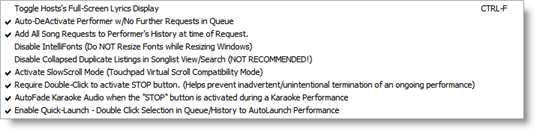
| · | Toggle Host's Full-Screen Lyrics Display
|
| This activates the Full-Screen Lyrics Display/SOLO Mode. Please refer to ""
|
| · | Auto-Deactivate Performer w/No Further Requests in Queue
|
| When activated, all Performers that do NOT have any further requests in queue will be automatically DELETED from the rotation following their performance.
|
| · | Add All Song Requests to Performer's History at time of Request.
|
| When activated, all Song Requests made by a Performer will automatically be added to their History as though they had actually performed the selection. When NOT activated, selections are only added to the Performer's History AFTER actually performing the selection.
|
| · | Disable IntelliFonts (Do NOT Resize Fonts while Resizing Windows)
|
| When activated, CompuHost will NOT automatically resize Onscreen Fonts.
|
| · | Disable Collapsed Duplicate Listings in SongList View/Search (NOT RECOMMENDED)
|
| When activated, the Collapsed Search Results feature is disabled, thus ALL duplicates will be displayed in the results set. This may impose a significant impact on Search Performance, as well as produce a much larger results set to search through, therefore activating this option is NOT recommended.
|
| · | Activate SlowScroll Mode (Touchpad Virtual Scroll Compatibility Mode)
|
| When activated, the Mouse Scroll function is throttled/controlled to address stability issues inherent with the use of Virtual Scroll Zones/Regions found on Laptop Touchpads. (Recommended if utilizing a Touchpad rather than an actual Mouse.)
|
| · | Require Double-Click to activate STOP button.
|
| Activating this option helps prevent the inadvertent/unintentional STOPPING of an ongoing performance. By activating this option, the user must consciously "double-click" the STOP button (V) (Main Screen) in order to prematurely halt an ongoing performance.
|
| · | AutoFade Karaoke Audio when the "STOP" button is activated during an ongoing Karaoke Performance.
|
| When activated, the Karaoke Audio will "fade away" when utilizing the "STOP" button (V) (Main Screen) to prematurely halt an ongoing Karaoke performance. This is useful for eloquently ending a long outro (non-vocal, instrumental conclusion of a song).
|
| · | Enable Quick-Launch - Double Click Selection in Queue/History to AutoLaunch Performance.
|
| When activated, double-clicking a selection in either the selected Performer's Queue or History will automatically launch the performance without the need to click the START button (V) (Main Screen). When deactivated, double-clicking a selection will open the EDIT dialog.
|
|
|